
How to Transfer an Enshrouded Save to a Server
Your world, with its bases and everything built in it, can move from your PC to a dedicated server. Each player's character stays on their own PC and comes along when they join.
Back up first
Copy your Enshrouded save folder (below) somewhere safe before you change anything. If the server already has a world, copy its savegame folder too.
Find your world on your PC
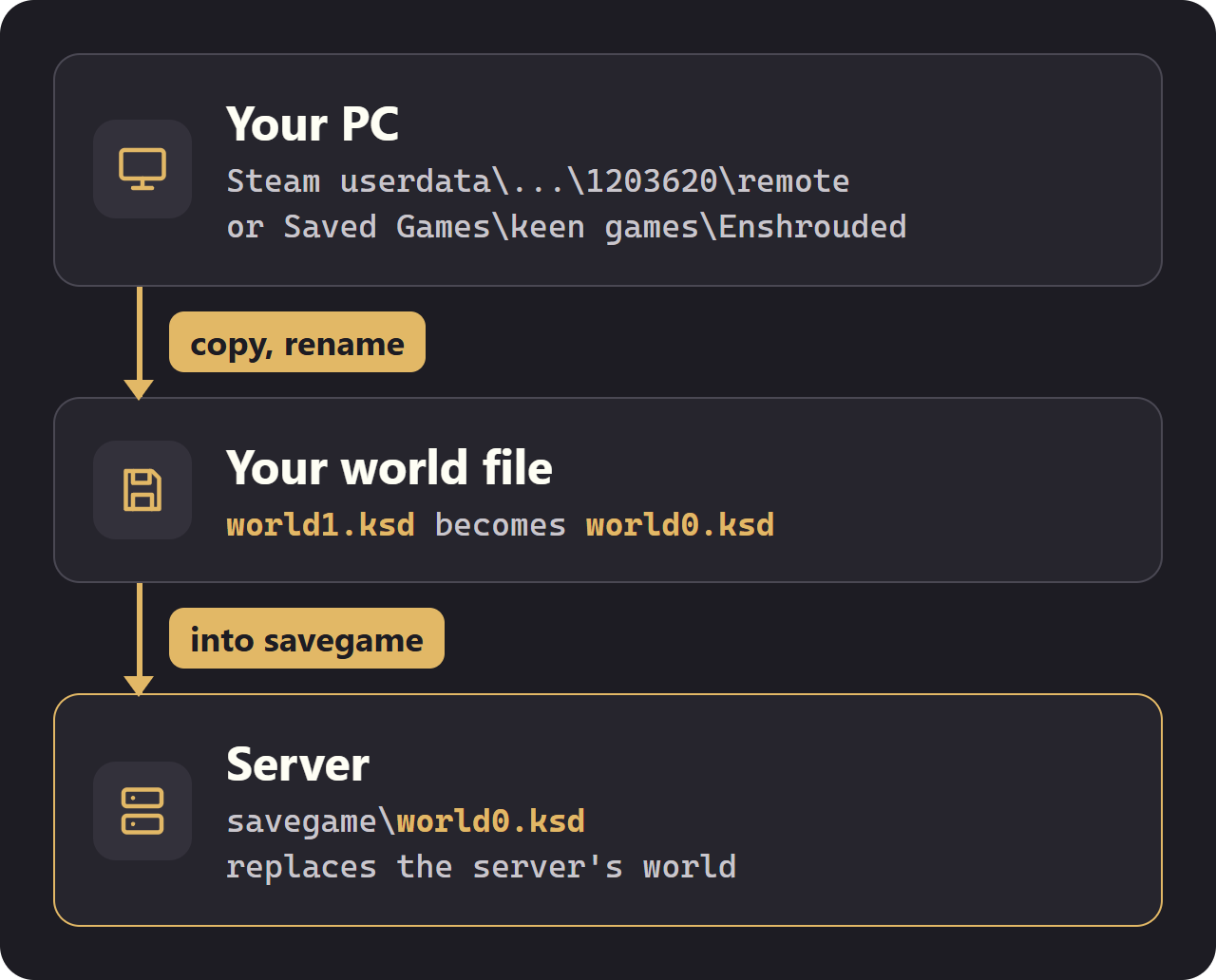
Look for your world files in these two folders. Paste each one into the address bar of Windows Explorer:
%USERPROFILE%\Saved Games\keen games\Enshrouded\default
C:\Program Files (x86)\Steam\userdata\<your Steam number>\1203620\remote
A world is one file: world plus a number, ending in .ksd. world0.ksd is your first world. Leave character0.ksd alone: that is your character, and it joins the server from your PC. Played several worlds? Take the world file with the latest time under Date modified.
Put it on your own server
1. Stop the server. 2. Copy your world file into the server's savegame folder and rename it to world0.ksd, replacing the file there. 3. Start the server.
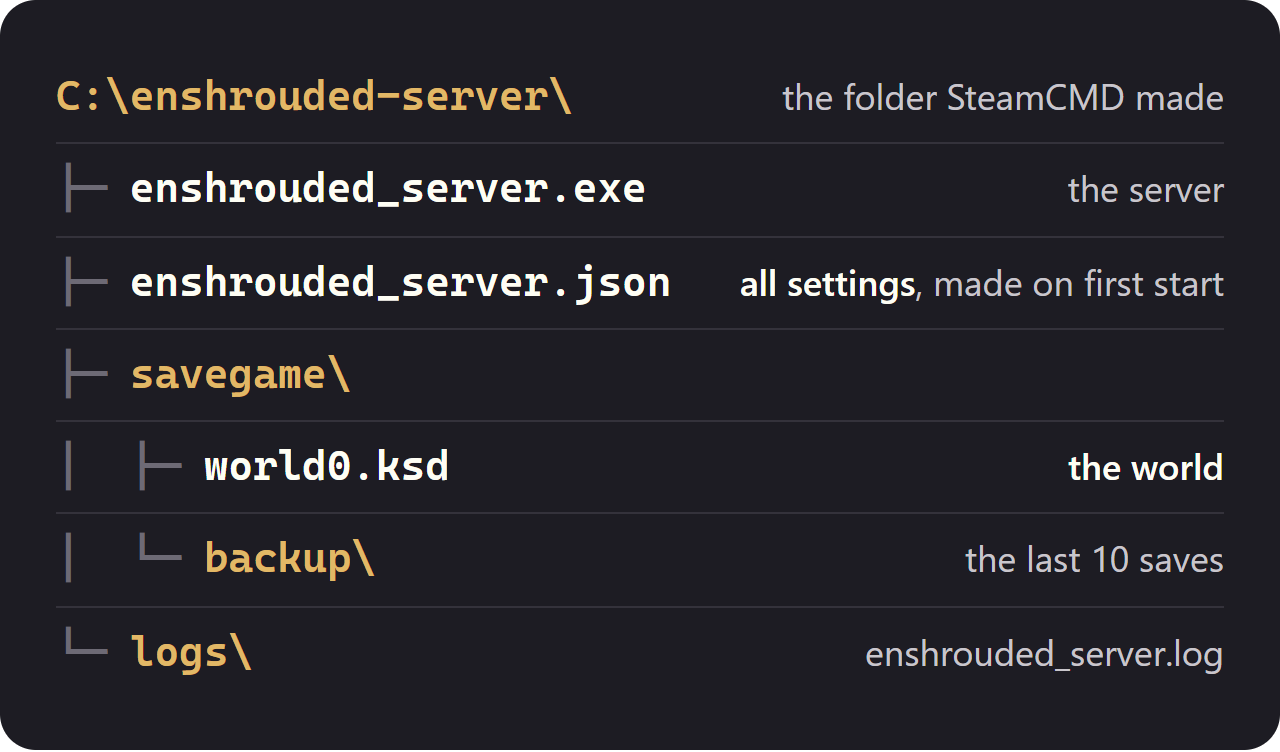
The server keeps its last 10 saves in savegame\backup, so a copy of the world it ran before is there too.
Put it on a Wikily Servers server
1. Stop the server in the panel. 2. Open the Files tab, then the savegame folder. Download world0.ksd first if you want to keep the server's current world. 3. Upload your world file (drag it in, up to 50 MB) and rename it to world0.ksd, replacing the old one. 4. Start the server.

Common problems
If you see a brand-new world instead of yours, check two things: the file must be called world0.ksd, exactly, and it must sit in savegame itself, not in a folder inside it.
Characters never travel with the world. Each player brings their own from their PC when they join, so nobody's character is lost.